Use clicks where they explain an action
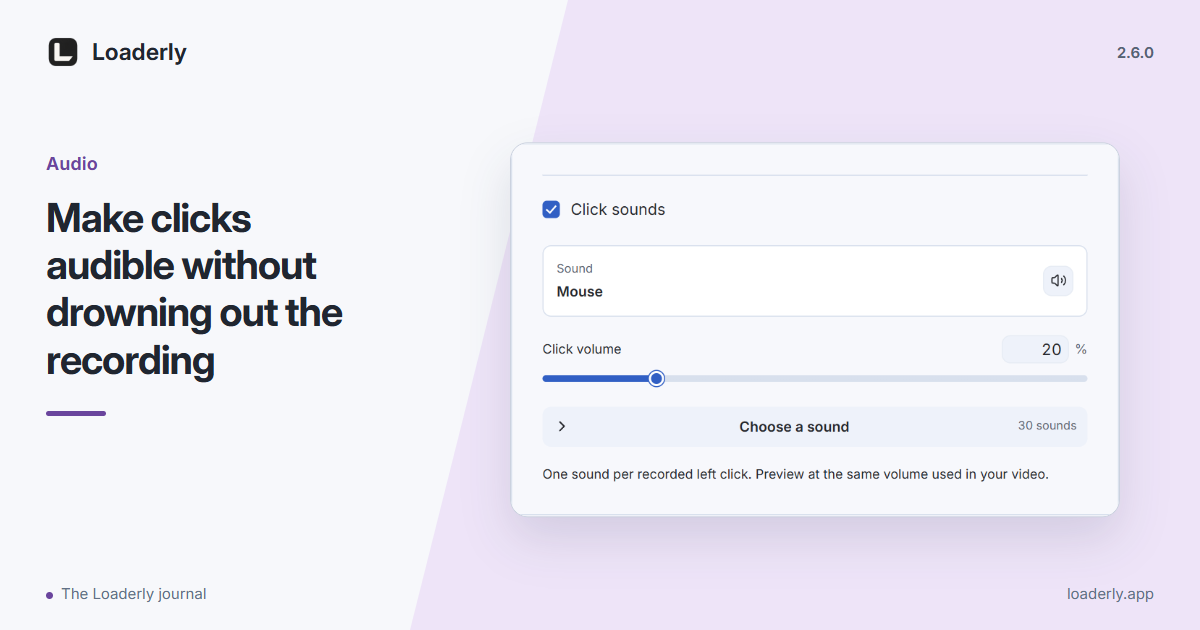
Open Recording layers and Cursor in a recording with pointer data, then enable Click sounds. They start switched off. A click should help the viewer notice an action; it does not need to be the loudest sound in the recording.
Choose the sound in context
Preview Soft, Crisp and Muted, then listen while the actual recording plays. A sound that seems quiet on its own may compete with a soft voice. Compare a busy section with a quieter one, and choose the character that suits both.
Adjust the click volume separately
Use Click volume to lower or raise the clicks independently of the recording. Start modestly and listen at your usual volume. If the click makes a word harder to follow, reduce it. You can switch click sounds off while keeping the visible cursor and its visual effects.
Check edits before sharing
Clicks follow the recorded presses through cuts and speed changes. Review a passage that crosses an edit, then export a short test to hear the complete mix. Your sound choice and volume are saved. Check the exported file before sharing the final recording.
Have a question or an idea for another article? Tell us