Start with an added audio track
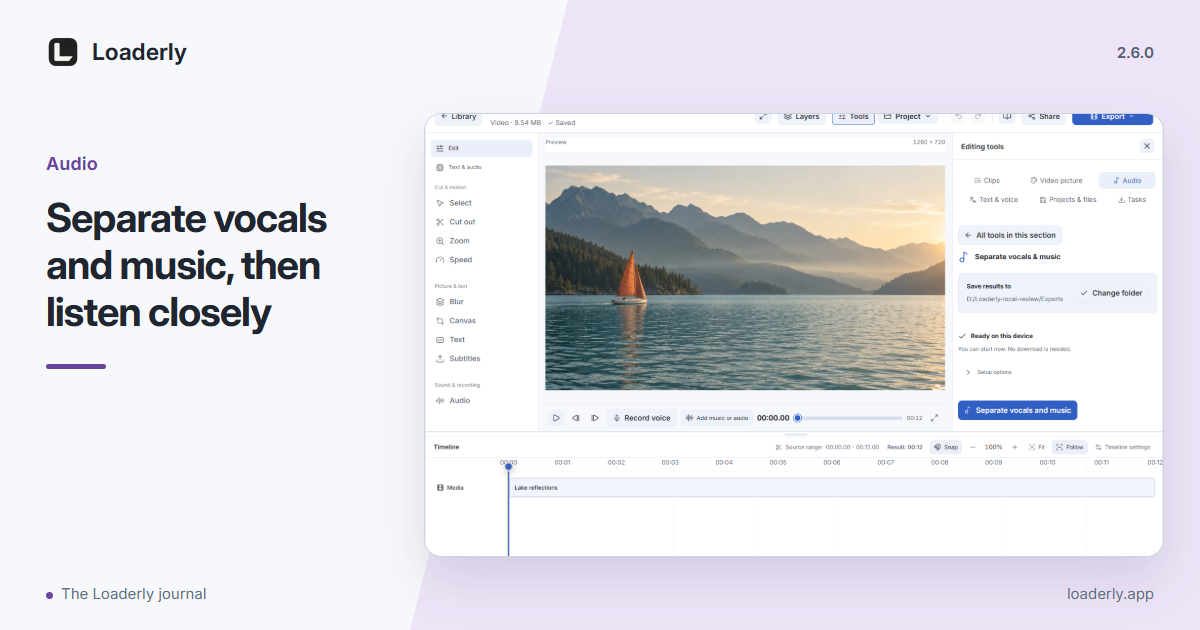
Choose Add music or audio, then import a file from your device or a supported link. Select that track and open Speed. Its controls belong to the added track, so you can shape the soundtrack without treating it as the original recorded microphone or system audio.
Hear what Follow speed changes
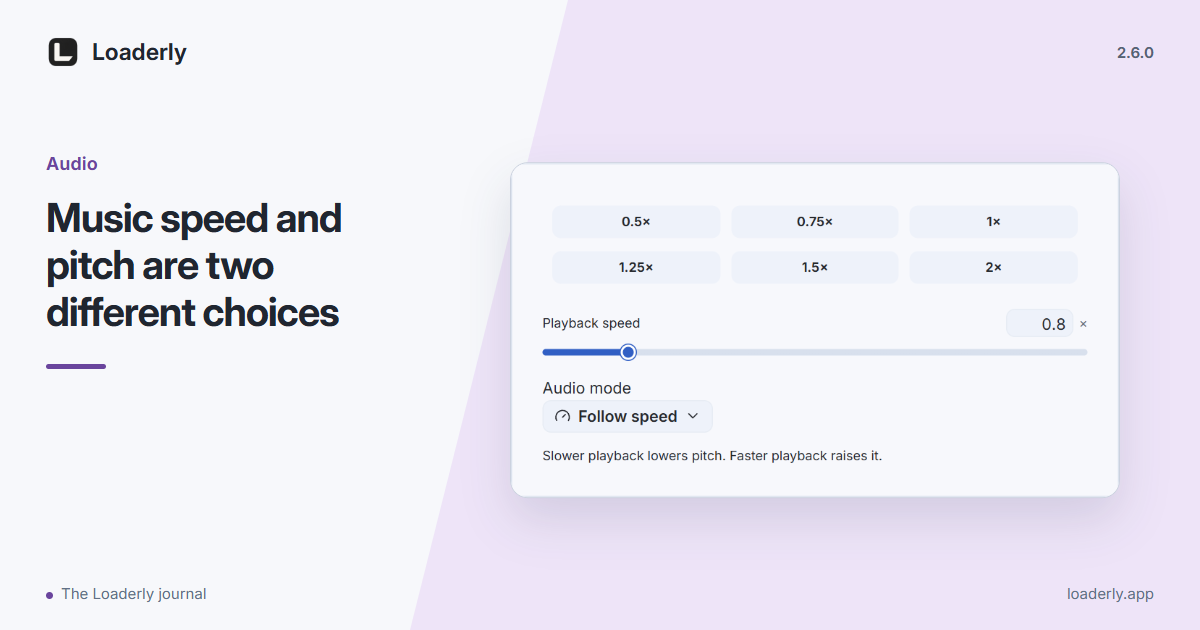
Added music starts in Follow speed mode. Slowing it down lowers its pitch; speeding it up raises it. This can suit a deliberate musical effect. Listen to a short passage containing both a sustained note and a rhythm before deciding how far to change the speed.
Keep pitch when the notes should stay steady
Choose Keep pitch when you want a different tempo while keeping the pitch steady. Compare it with Follow speed at the same rate and listening level. Large changes can make processing easier to hear, so judge the result with your actual music or voice.
Recheck the timing and export
A speed change also changes how much time the source audio occupies. Check its start, its trimmed edges and any split sections against the video. Save the project and export a short test. The selected mode is stored with the added track and used in playback and export.
Have a question or an idea for another article? Tell us