Start with an editable recording
Open a Loaderly recording that includes pointer data, then choose Recording layers and Cursor. The saved positions let you change the cursor after recording. A regular imported video does not contain that data, so its original pointer cannot simply be replaced.
Choose a shape that suits the scene
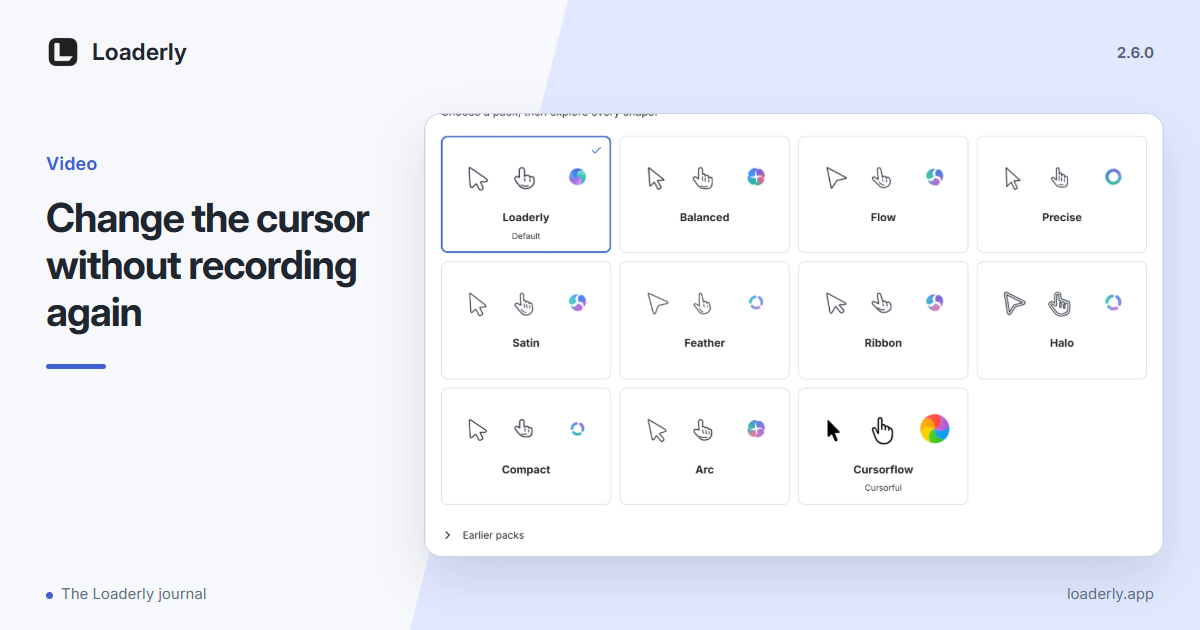
Try Loaderly, Soft, Flow, Outline, Midnight, Cursorflow and Original against the actual background. Compare the arrow, link hand and text cursor. A shape that looks good on an empty panel still needs to remain clear over buttons, text and bright areas.
Tune one effect at a time
Use the movement test to compare smoothing, shadow, sway and motion blur. Start with a readable size, then adjust one control at a time. Strong effects can draw attention away from the step you are explaining. Check a slow move, a quick move and a click.
Check the exported movement
Play a short passage through the editor, including a cut or zoom if you use them. Export the same passage and review it at the intended viewing size. Save the project when you are happy with the settings. Appearance preferences can also carry into new eligible recordings.
Have a question or an idea for another article? Tell us