
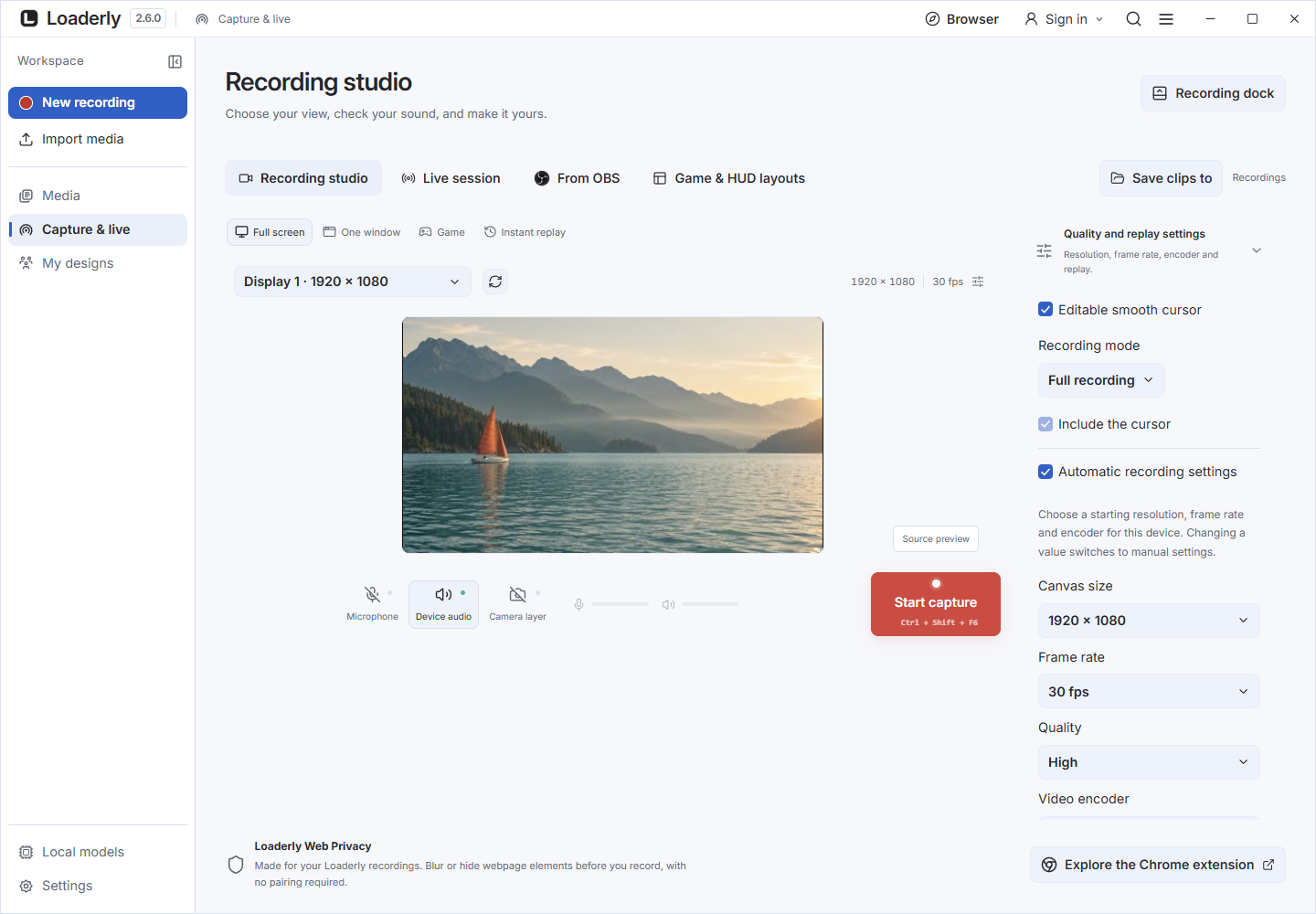
Record separate sources
In Capture & live, enable Microphone and the system or output audio you need. Select the input devices before starting. After saving, open Recording layers in the editor and choose the microphone track.
Muting that track does not mute the separate game or system track.
Start with a preset
Open Voice cleanup and enable voice filters. Try Natural, Podcast, Gaming, Soft voice, Broadcast or Noisy room. These are starting settings; listen to both normal and quiet speech before choosing one.
Adjust without cutting words
Use low-rumble removal for unwanted low frequencies, compression for level differences, and the limiter for peaks. If quiet words disappear, lower the noise-gate threshold, reduce attenuation or increase hold time.
Compare with filters disabled. Keep the unprocessed source available.
Try saved microphone filters
Open My designs and choose a microphone filter. Preview it using a local audio file or microphone sample, then choose Use mic filter. Your preview audio stays on the device.
Export a settings file to share the filter.
Add narration while editing
Use Record voice beside the editor playback controls. Record your narration, finish it and adjust the resulting audio track alongside the original soundtrack.