
Open and restore your tabs
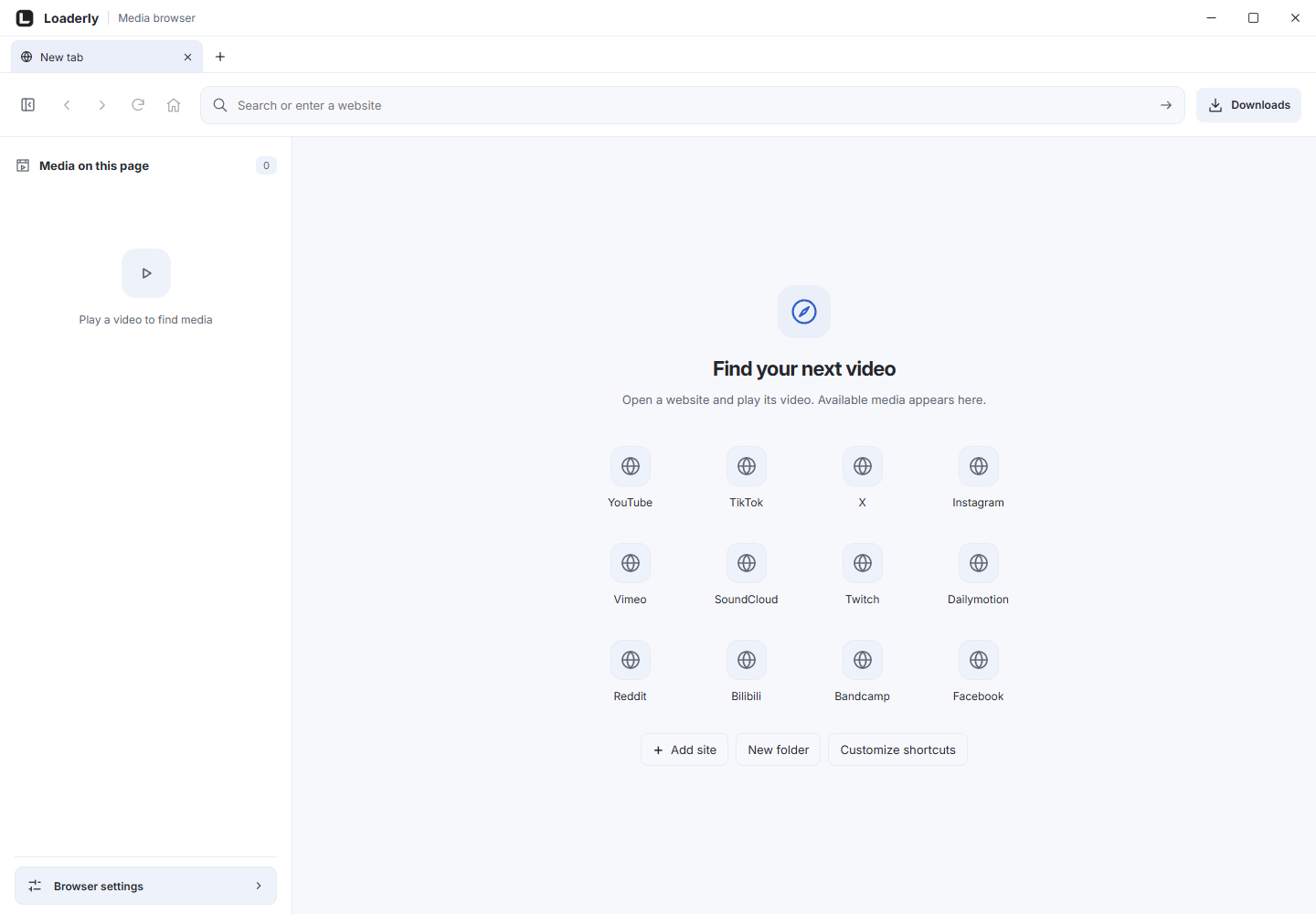
Choose Browser in the app, then use + beside the last tab to open another page. Select a tab to return to it. Browser settings > Restore pages on startup keeps your open pages for the next visit, including after closing Loaderly.
CtrlT opens a tab, CtrlW closes it, Ctrl+Tab switches tabs and CtrlL focuses the address. Use ⌘ instead of Ctrl on Mac. Site icons are cached on your device. Middle-click a link, or Ctrlclick it (⌘click on Mac), to open a background tab and stay on the current page.
Keep private areas out of view
Open Browser settings > Page privacy. Choose how the address is shown, or select an area of the page to blur or hide. Move over the page to check the highlighted target before selecting it.
You can select supported video players and elements inside open shadow roots. Review the result before recording; page changes or embedded content can require a new selection.
Organize sites and find media
Use the star beside the address to save the current website to your new-tab shortcuts. It saves the website home page without private watch parameters and prevents duplicates.
Use Add site for a specific page. Create a folder, or open its menu and choose Customize folder to change its name, icon and color. Drag shortcuts into or out of an open folder, and move the folder by its heading.
Click the filled star again to remove the saved website. Its filled state shows whether the site is saved.
Control blocking for each site
Browser settings > Block ads and trackers applies only to the current site. Blocking is on by default for new sites. Turn it off if a site stops working; your choice is saved and that page reloads.
Previously open sites can retain their old disabled setting during an upgrade. Known ad and tracking requests are blocked, but this is not a guarantee against all tracking.
Some services, including Google sign-in, may require a supported external browser. Blocking uses a bundled local snapshot of EasyList, EasyPrivacy and Liste AR. Your browsing addresses are not sent to these lists.
Some ads and site verification prompts can still appear.
Choose media and available quality
Play the video to detect its available stream. When the stream lists several sizes, choose Quality before Download video; the list uses the actual frame heights. Download audio saves audio only.
Steam store trailers are supported. Protected media is identified and cannot be downloaded. On YouTube, the video button downloads the current video; Choose videos from this playlist opens a selection for playlists and Mixes.
The description panel has its own space beside playback.
Find browser settings without shrinking your media
Open Browser settings to see grouped controls in the full sidebar. Use Back to return to the media list. Site blocking and cookies are separate from address visibility and startup preferences.
Clear site cookies asks you to confirm the site before removing its session.
Keep watching when a download link opens
Recognized direct video and audio links go to Loaderly downloads while the viewing page stays open. If a stream offers several sizes, select a quality in the media card. The list shows actual frame heights, which may differ from the website labels for cropped films.
Protected media is not downloaded.
Arabic playback controls
Loaderly corrects inherited direction problems in supported media controls on Arabic pages, including common Video.js, JW Player, Plyr, Shaka and Flowplayer layouts. Page text and subtitles keep their direction.
Custom players can still need a separate compatibility fix.