Start with the right recording mode
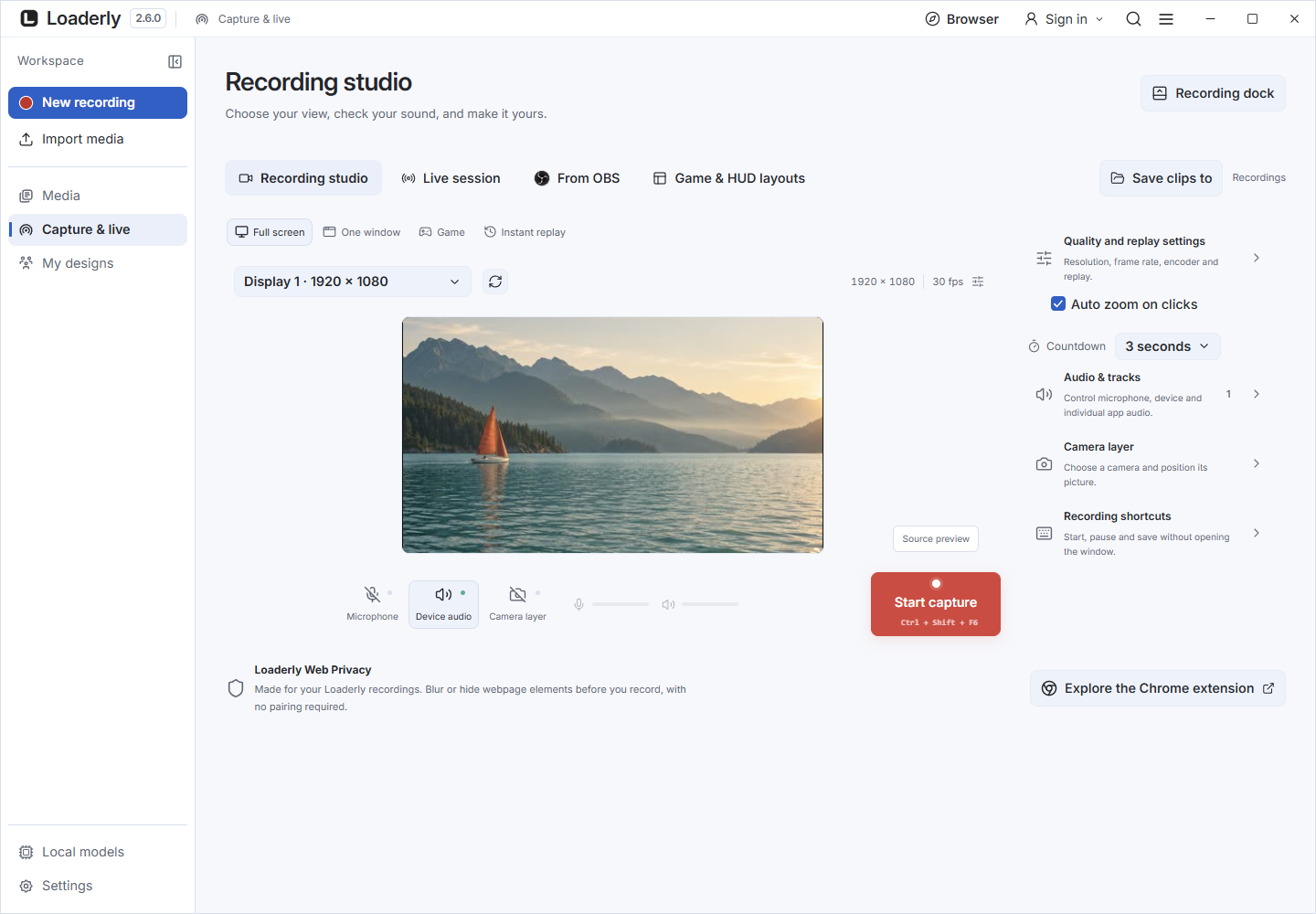
Open Capture & live and choose Full screen or One window for a tutorial. Automatic zoom starts enabled for tutorials where pointer data is supported. Turn it off before recording if you want a steady frame.
Game mode starts with automatic zoom off.
Refine automatic zoom
Open the saved recording in the editor and select Zoom. Choose the automatic zoom controls to generate fewer or more zooms, adjust zoom depth and timing, or switch between following the cursor and a fixed focus.
Select an individual zoom on the timeline to refine it.
Change cursor appearance
Open Recording layers, then Cursor. Adjust the cursor size, smoothing, shadow, movement sway and motion blur. Automatic shape uses available pointer metadata. New settings use a 50 px cursor; existing project settings are preserved.
Customize a click
Enable click animation, choose Ring, Orb or Ripple, and adjust its color and press force. New settings start at 60% force. Play a short section containing clicks before exporting to judge the result at the final canvas size.
Pointer data depends on the platform
Cursor replacement needs recorded pointer data. An imported video cannot reconstruct its original cursor positions or shapes. Linux recordings can contain the system cursor directly; global cursor tracking is not available on every Wayland session.
Cursor packs and motion blur
Open Recording layers > Cursor. Choose a pack, then preview the same recording with different cursor shapes. Motion blur adds a directional blur that increases with cursor speed; use its strength control to adjust it.
Cursor shadow adds a fixed shadow, while Movement sway tilts the cursor as it moves. These controls work across the packs. Turn each effect off to compare. Imported videos without editable cursor data keep their recorded cursor.
Click sounds you can control
Add a soft, crisp or muted sound to recorded left clicks. Preview the sound, adjust its volume independently, or switch it off. Your choice is saved, and the clicks follow cuts and speed changes in playback and export.
Drawing shortcuts in your keyboard layout
Undo, redo and drawing-tool shortcuts work with Arabic and other keyboard layouts. Text fields keep their normal editing shortcuts, and Delete removes only the selected drawing.
Preview and balance click sounds
Open Recording layers > Cursor and choose a click sound. Preview it, adjust its volume or turn it off. Click effects require recorded pointer events; imported videos cannot recover them.
Browse cursor packs before choosing
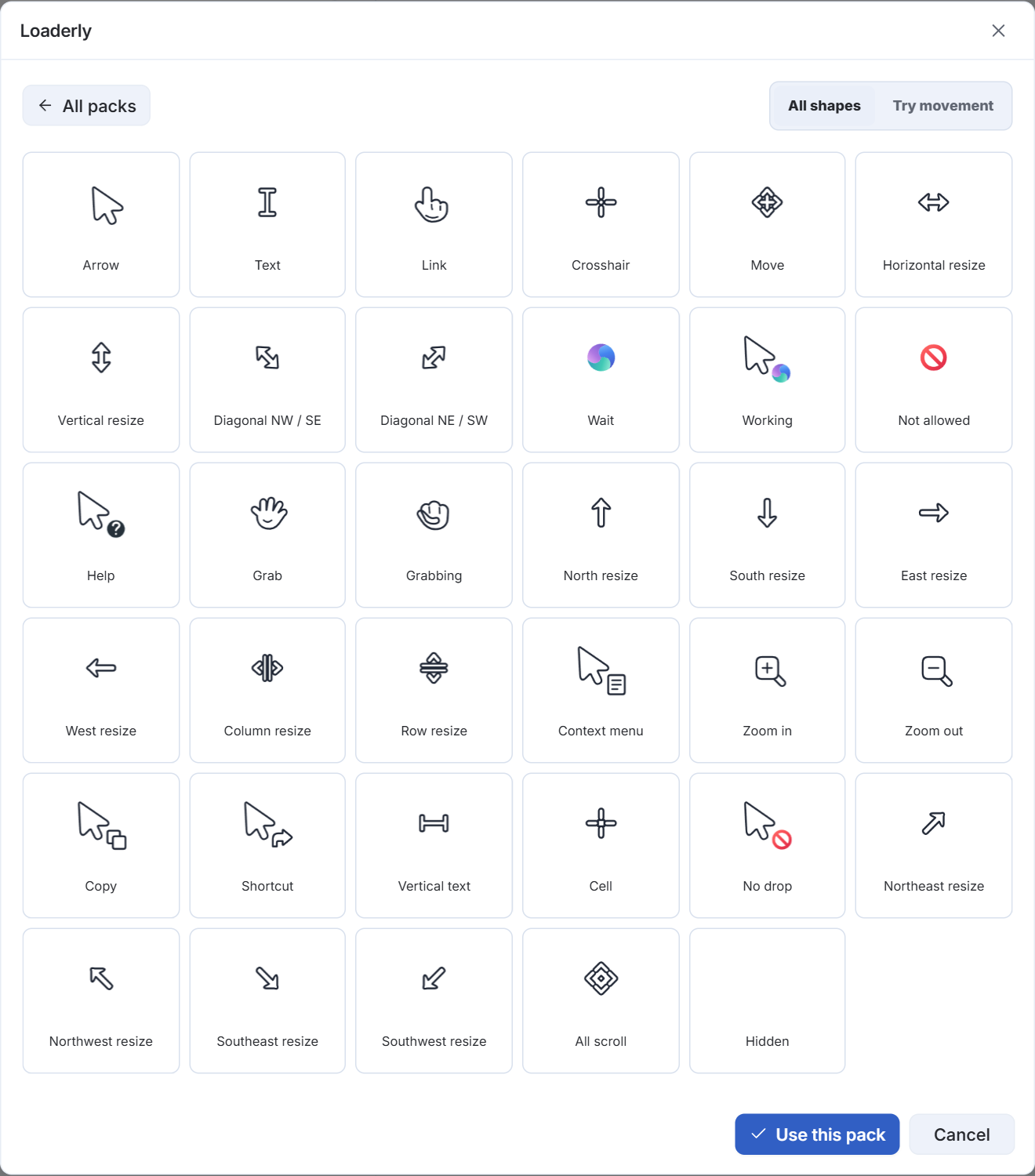
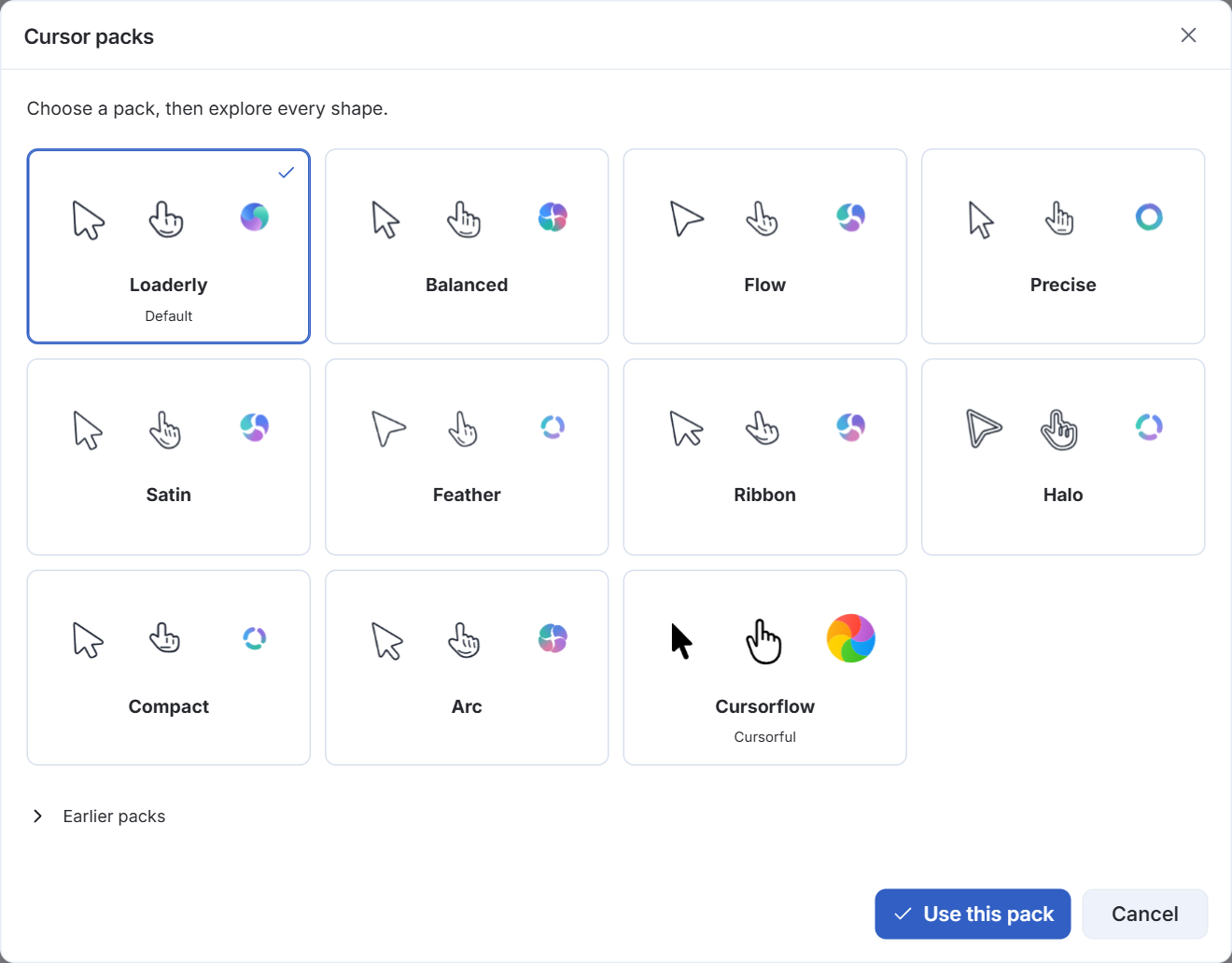
Open Recording layers > Cursor, then Browse packs. Loaderly is the default design. Select a pack to see its shapes, or choose Try movement to preview the effects. Use this pack applies your choice to the recording.
Cursorflow keeps its original Cursorful artwork and colors. Editing a recorded cursor requires independent cursor data; an imported video alone does not provide it.
Check every cursor state
All shapes shows text, links, grabbing, resizing, waiting, working and the other available states. Choose a shape to try it in the movement preview. Waiting and working indicators animate, movement sway settles smoothly, and the click effect fades even when the mouse button stays held.
Adjust smoothing, blur and click force from the cursor controls.